

What is Port Forwarding?
Port forwarding is a way of directing specific types of traffic from your router straight to your PC or console. For fast-paced shooters like BattleBit Remastered, this helps your device communicate more efficiently with game servers and other players, so you can avoid unnecessary blocks, fix NAT issues, and improve connection stability during large-scale matches.
Do You Need to Port Forward BattleBit Remastered?
If you’re facing failed server joins, strict NAT behavior, or unstable connections on official or community servers, port forwarding BattleBit Remastered can help. It creates a clearer path between your device and the game’s servers, reducing random disconnects, improving reliability in 254-player battles, and making it easier to connect to community-hosted matches.
Information Required for BattleBit Remastered Port Forwarding
Before you set up port forwarding, make sure you have:
1. The IP address of your router.
2. The IP address of your gaming PC.
3. The TCP and UDP ports used by BattleBit Remastered.
How to Set Up BattleBit Remastered Port Forwarding
Here’s a step-by-step guide to port forward BattleBit Remastered:
Step #1: Access Your Router
1. Open your browser and enter your router’s IP address.
2. Log in by typing your admin credentials.
3. Go to the Port Forwarding, NAT, or Virtual Server section.
Step #2: Create a New Port Forwarding Rule
1. Add your PC’s IP address.
2. Enter BattleBit Remastered’s TCP and UDP ports.
3. Assign a static IP or set a DHCP reservation so the rule always points to the correct device.
4. Save and apply the changes.
Step #3: Update Your Firewall Settings
1. Open Windows Firewall on your PC.
2. Create inbound and outbound rules for the same ports you forwarded.
3. Allow BattleBit Remastered through the firewall to prevent blocked connections.
Step #4: Test Your Connection
1. Use a port checker to verify the forwarded ports.
2. Launch BattleBit Remastered, refresh the server list.
3. Try joining an official or community server to confirm everything is working smoothly.
Ports Needed to Run BattleBit Remastered
Ports to Forward on Steam
PureVPN’s Port Forwarding Add-On
Easy & Secured Way to Open All Ports
Manually forwarding ports can be a hassle, especially if you’re behind CGNAT, dealing with double NAT from multiple routers, or using an ISP-issued router that limits access to advanced settings. PureVPN’s Port Forwarding add-on removes all of that complexity by letting you open the exact ports BattleBit Remastered needs in just a few clicks.
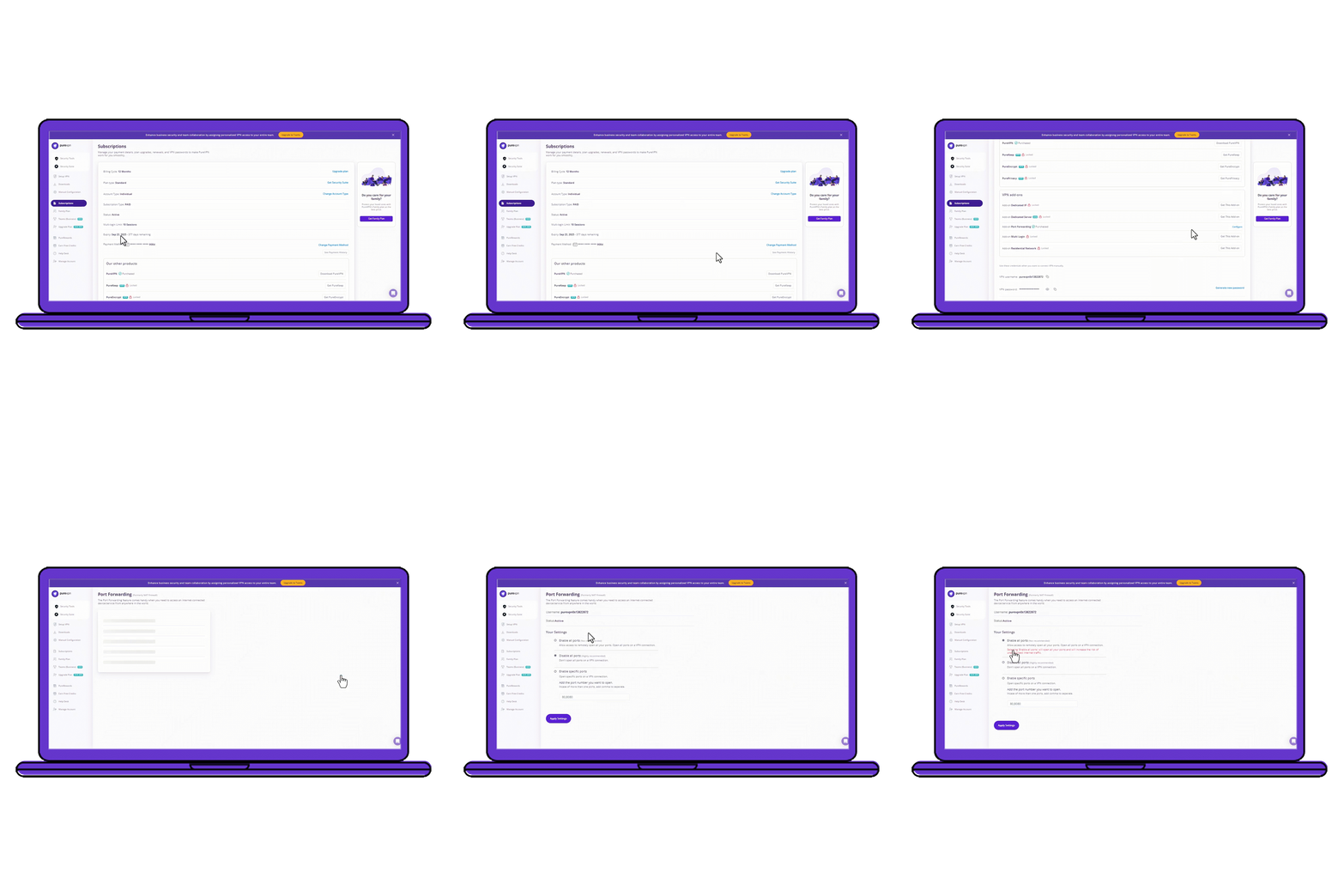
How to Port Forward BattleBit Remastered with PureVPN
1. Sign up for PureVPN and add Port Forwarding at checkout.
2. Download and install the app for your device, then log into your account.
3. Go to the Member Area, open Subscriptions, and click Configure under Port Forwarding.
4. Click Enable specific ports and enter the ports used by BattleBit Remastered.
5. Connect to a server that supports port forwarding and launch BattleBit Remastered.
Benefits of Using the Port Forwarding Add-On
PureVPN’s Port Forwarding add-on can help you in dozens of ways. Here are some top ways you can make the most of the add-on:
- Avoid digging through router menus
- Get around CGNAT with minimal effort
- Enjoy VPN protection while opening ports
- Forward up to 15 ports at the same time
- Access your home network from anywhere
Frequently Asked Questions
What ports are required for BattleBit Remastered?
BattleBit Remastered uses TCP ports 27015, 27036, and 29998, along with UDP ports 27015, 27031–27036, and 29998. These ports handle server communication and gameplay traffic, though some community servers may occasionally use additional ports.
Does port forwarding help BattleBit Remastered?
Yes. Port forwarding can make it easier for your PC to communicate with both official and community servers by reducing blocked packets, router filtering, and NAT-related issues. This often results in fewer disconnects, smoother server joins, and more reliable performance during large 127v127 matches.
How do I port forward BattleBit Remastered?
Log into your router, assign your PC a static IP, and open the required TCP/UDP ports, then create matching rules in Windows Firewall. For a quicker option, PureVPN’s Port Forwarding add-on lets you open the ports you need from a simple online dashboard.
Why is BattleBit Remastered port forwarding not working?
Port forwarding might not work if your PC doesn’t have a static IP, if the wrong ports were added, or if your Windows Firewall is still blocking inbound traffic. CGNAT, double NAT, or restricted ISP routers can also break manual port forwarding entirely. In those cases, using PureVPN’s Port Forwarding add-on bypasses these limitations and makes the ports accessible instantly.