

What is Port Forwarding?
Port forwarding is a method that directs game traffic straight to your computer, avoiding common barriers that cause delays or block connections. In a strategy title like Rise of Nations, where multiplayer sessions rely heavily on stable peer-to-peer links, opening the necessary ports helps you join multiplayer games faster, stay connected throughout long sessions, and avoid disruptive disconnects.
Do You Need to Port Forward Rise of Nations?
If you’ve ever struggled to connect to friends’ lobbies, experienced sudden drops in the middle of an intense match, or found yourself unable to host custom games, port forwarding can make a big difference. By allowing direct communication between your PC and other players, it resolves strict NAT issues, improves connection stability, and makes multiplayer sessions in Rise of Nations run much more smoothly.
Information Required for Rise of Nations Port Forwarding
To set up port forwarding for Rise of Nations, you will need the following details:
1. The IP address of your router.
2. The local IP address of your PC.
3. The TCP and UDP ports Rise of Nations uses.
How to Set Up Rise of Nations Port Forwarding
Here’s a step-by-step guide to port forward Rise of Nations:
Step #1: Open Ports on Your Router
1. Launch a browser and enter your router’s IP address.
2. Log in with your admin credentials.
3. Go to the Port Forwarding, NAT, or Virtual Server section.
4. Add a new entry using your PC’s local IP address.
5. Input the TCP and UDP ports used by Rise of Nations.
6. Save the configuration.
Step #2: Update Firewall Settings
1. Open your computer’s firewall settings.
2. Add inbound and outbound rules for the same ports you forwarded.
3. Check that Rise of Nations is allowed through the firewall.
Step #3: Test the Connection
1. Use a port checker to verify the rules are active.
2. Launch Rise of Nations and join a multiplayer session to confirm stable connectivity.
Ports Needed to Run Rise of Nations
PureVPN’s Port Forwarding Add-On
Easy & Secured Way to Open All Ports
Setting up port forwarding on your own for Rise of Nations can feel tedious, especially if your router menus are confusing or your ISP uses CGNAT. With PureVPN’s Port Forwarding add-on, you can bypass all of that and quickly open the ports needed for multiplayer, making it easier to connect with friends, reduce mid-game drops, and keep long strategy sessions running smoothly.
How to Port Forward Rise of Nations with PureVPN
1. Sign up for PureVPN and include the Port Forwarding add-on during checkout.
2. Download and install the PureVPN app on your device, then log in.
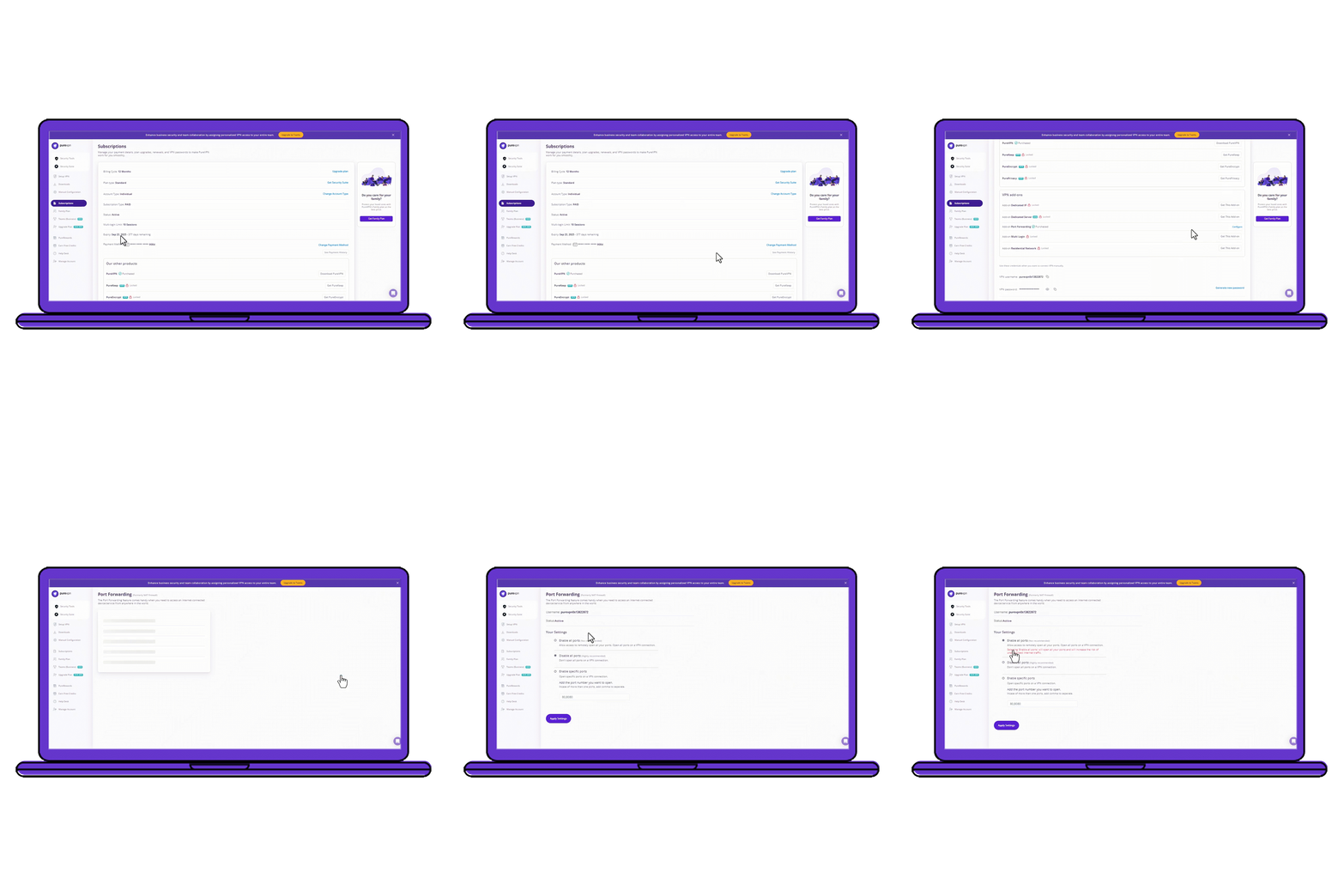
3. Go to the Member Area, open Subscriptions, and click Configure next to Port Forwarding.
4. Select Enable specific ports, enter the required ports for Rise of Nations and apply the changes.
5. Connect to a port forwarding-supported server and launch Rise of Nations for a smoother gaming experience.
Benefits of Using the Port Forwarding Add-On
PureVPN’s Port Forwarding add-on can help you in dozens of ways. Here are some top ways you can make the most of the add-on:
- Get into multiplayer lobbies faster with an Open NAT.
- Keep gaming sessions running smoothly without random drops.
- Forward ports in seconds without having to fiddle with router settings.
- Bypass CGNAT and other ISP blocks that usually stop manual port forwarding.
- Enjoy top-tier VPN protection while your game traffic flows through the right ports.
Frequently Asked Questions
What ports do I need to open for Rise of Nations?
Rise of Nations uses TCP: 34987 and UDP: 34987 for multiplayer on PC. Forwarding these ports improves connectivity with other players and helps reduce common errors when joining or hosting games.
Does port forwarding help Rise of Nations?
Yes, port forwarding can resolve strict NAT issues, reduce lobby errors, and make peer-to-peer matches more stable. By directing game traffic straight to your PC, it improves multiplayer reliability and gives you a smoother experience in Rise of Nations.
Why is Rise of Nations port forwarding not working?
If port forwarding isn’t working, check that your PC has a static IP and that the correct TCP/UDP ports are entered. Conflicts with UPnP, firewall rules, or CGNAT from your ISP can also block connections.