
What is Port Forwarding?
Port forwarding directs specific internet traffic from your router to the device running Transmission. Transmission works best when it can receive incoming connections, so opening its listening port helps the app stay fully reachable and prevents NAT or firewall rules from blocking peer activity, leading to smoother performance and more consistent connectivity.
Do You Need to Port Forward Transmission?
If Transmission shows a “Port Closed” status, fails to accept incoming connections, or struggles to maintain stable peer activity, port forwarding can help. It makes your device reachable on the network, reducing connection delays, improving speeds, and preventing the “Not Connectable” warnings that often appear when NAT or ISP restrictions block inbound traffic.
Information Required for Transmission Port Forwarding
Before you set up port forwarding, make sure you have:
1. The IP address of your router.
2. The IP address of your PC running Transmission.
3. The TCP and UDP ports Transmission uses.
How to Set Up Transmission Port Forwarding
Here’s a step-by-step guide to port forward Transmission:
Step #1: Access Your Router
1. Open your browser and enter your router’s IP address.
2. Log in using your admin credentials.
3. Go to the Port Forwarding, NAT, or Virtual Server section.
Step #2: Create a New Port Forwarding Rule
1. Add your PC’s local IP address.
2. Enter the TCP and UDP ports transmission uses
3. Assign a static IP or set a DHCP reservation, so the rule always points to the correct device.
4. Save the changes.
Step #3: Update Your Firewall Settings
1. Open Windows Firewall on your PC.
2. Create inbound and outbound rules for the same port.
3. Make sure Transmission is allowed through the firewall.
Step #4: Test Your Connection
1. Open Transmission’s settings.
2. If it shows “Port Open,” your setup is working
Port Needs to Run Transmission
Ports to Forward on PC
PureVPN’s Port Forwarding Add-On
Easy & Secured Way to Open All Ports
Manually opening ports for Transmission can be difficult when your router or ISP doesn’t allow you to change port settings, you’re behind CGNAT, or multiple devices on your network create unexpected NAT issues. PureVPN’s Port Forwarding add-on lets you open the exact port Transmission needs in just a few clicks, making incoming connections work even when your ISP normally blocks them.
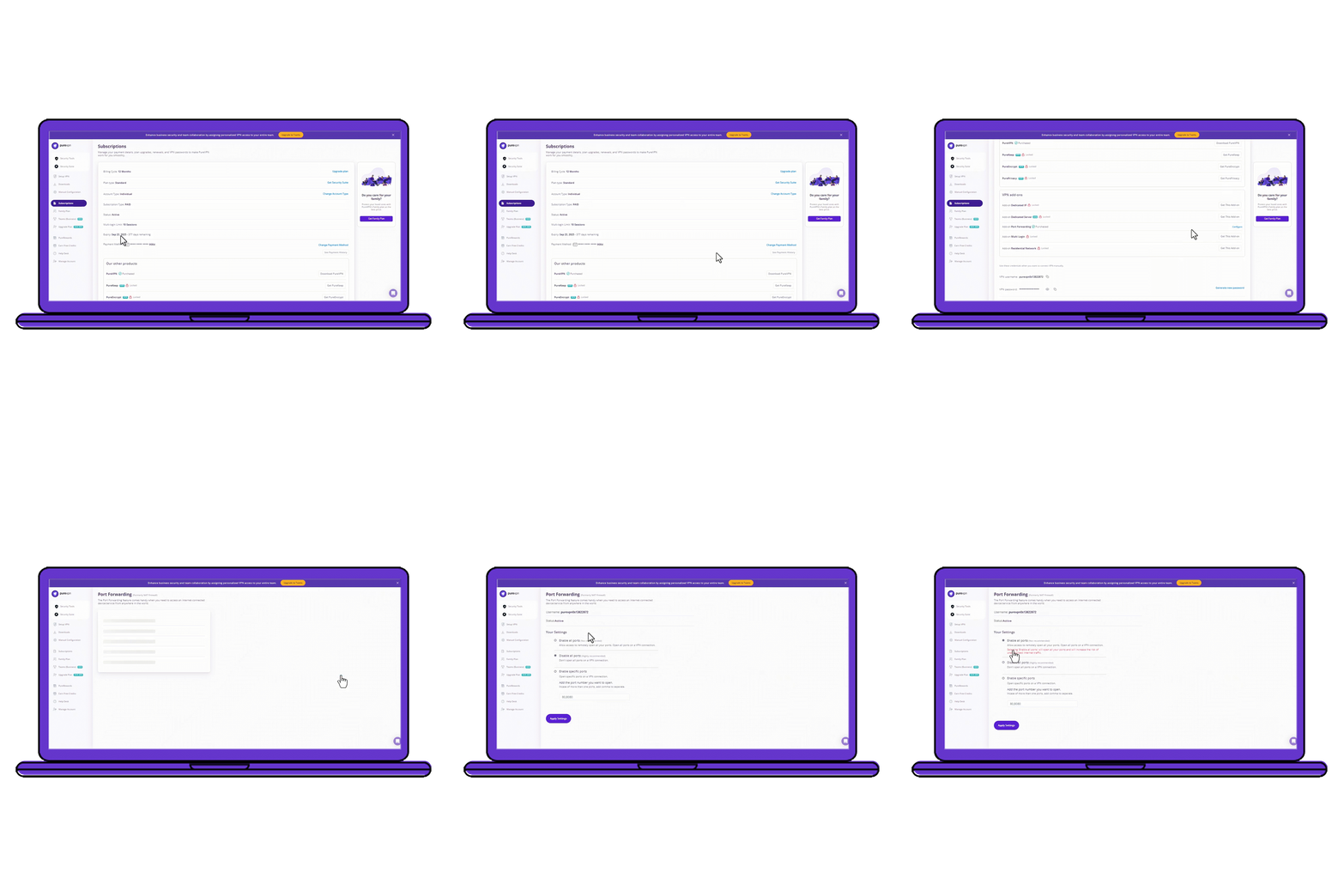
How to Port Forward Transmission with PureVPN
1. Sign up for PureVPN and add Port Forwarding at checkout.
2. Download and install the PureVPN app on your PC, then log into your account.
3. Go to the Member Area, open Subscriptions, and click Configure under Port Forwarding.
4. Click Enable specific ports and enter the ports used by Transmission.
5. Connect to a server that supports port forwarding and launch Transmission.
Benefits of Using the Port Forwarding Add-On
PureVPN’s Port Forwarding add-on can help you in dozens of ways. Here are some top ways you can make the most of the add-on:
- Stay protected while forwarding ports
- Open up to 15 ports at the same time
- Bypass CGNAT limitations with ease
- No need to dig through router menus
- Access your home devices remotely
Frequently Asked Questions
What ports are required for Transmission?
Transmission uses one incoming port, and the default is 51413 for both TCP and UDP. You can view or change this number in the app’s settings, and whichever port appears there is the one you need to forward.
Does port forwarding help with Transmission?
Yes. Port forwarding allows Transmission to accept incoming connections, which improves peer availability, reduces connection errors, and helps the app maintain stable activity instead of showing “Port Closed” or “Not Connectable.”
Why is Transmission port forwarding not working?
It can fail if your PC doesn’t have a static IP, the wrong port is forwarded, or Windows Firewall is blocking incoming traffic. CGNAT, double NAT, and ISP restrictions can also break manual port forwarding (in such cases, you’ll need a port forwarding VPN to bypass these limitations).
How do I port forward Transmission?
Log into your router, assign your PC a static IP, and forward the TCP/UDP port shown in Transmission’s settings, then update your firewall rules to match. The simpler option is using PureVPN’s Port Forwarding add-on to open the required port without touching router menus.